
 Understanding the Layout
The page is split into two panels:
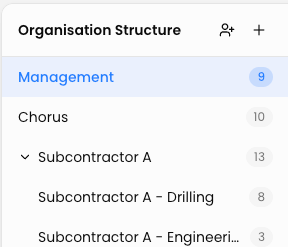
Left panel — Structure tree A collapsible list of all your levels. Top-level entries appear at the root; sub-levels are indented beneath their parents. Click any level to select it. If a level has children, clicking it also expands or collapses those children. The number badge on the right of each row shows how many users belong to that level.
Right panel — Members When a level is selected, the right panel shows all users assigned to it, along with their job roles, email address, and current compliance status. You can search and sort this list. Click View on any row to open a detailed user record in a slide-out drawer.
If a level has managers assigned, their names appear in the header of the right panel, next to the member count.
Creating a New Level
-
Click the + (plus) icon in the top-right corner of the left panel.
-
You are taken to the Create Level page.
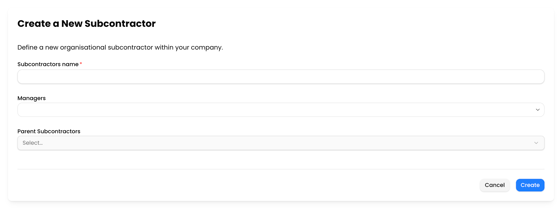
- Fill in the required Level name (e.g. "Engineering", "Site North", "Compliance Team").
- Optionally assign one or more Managers — these are users who will appear as responsible for this level. You can pick from any user already in the system.
- Optionally select a Parent Level — this nests the new level underneath an existing one, which is useful for building a hierarchy (e.g. "Engineering" nested under "Technology").
- Click Create. You are returned to the Structure page and the new level appears in the tree.
A level can represent anything — a department, a site, a project team, a region. There is no limit on nesting depth.
Editing an Existing Level
- Select the level in the left panel tree.
- Click the Edit button in the top-right corner of the right panel.
- A modal opens with the same fields as the create form: name, managers, and parent level.
- Make your changes and click update.
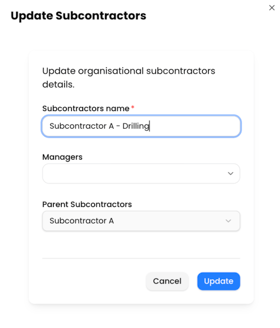
You can change the parent at any time to re-home a level within the hierarchy. The current level is excluded from the parent selector so you cannot make something its own parent.
Assigning a User to a Level
There are two ways to assign a user to a level:
From the Structure page: Click the user-plus icon in the top-right corner of the left panel. A modal opens where you can search for users and assign them to the currently selected level.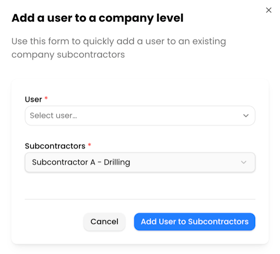
From the user's own record: On the Users page, open a user and update their level from their profile.
A user can belong to one level at a time. Reassigning them to a new level removes them from the previous one.