
Opening a User Record
You can open a user record from several places in Chorus:
-
Click a user's name from the Users list.
-
Click a user's name directly from the Matrix Report.
This takes you to the full user view page.
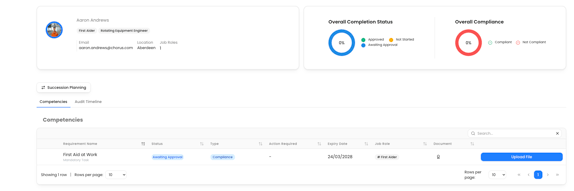
The Header — User Overview
At the top of the record you'll see a summary of the user at a glance:
-
Name and avatar — with job roles shown as badges.
-
Email and location.
-
Two ring charts showing:
-
Overall Completion — the proportion of requirements that are Approved, Awaiting Approval, or Not Started.
-
Overall Compliance — the proportion of requirements the user is Compliant vs Not Compliant.
-
-
These charts update in real time as records are approved or added.
Tabs
The user record has two tabs:
Training / Competencies
This is the default tab. It lists every training requirement assigned to the user, with the following columns:
| Column | What it shows |
|---|---|
| Requirement | The name of the training or competency, with a sub-label indicating whether it's mandatory or optional |
| Status | A colour-coded badge showing the current state (see Status Colours below) |
| Type | Whether the requirement is Compliance or Competence |
| Action Required | What still needs to happen, if anything |
| Expiry Date | When the record expires (shown on wider screens) |
| Job Role | Which job role(s) this requirement is linked to |
| Document | An icon button to view an attached certificate or file, if one exists |
| Actions | Context-sensitive — shows Upload File, Complete Requirement, or nothing depending on the requirement type |
Some rows have a chevron on the left — clicking this expands the row to show multiple individual pieces of evidence submitted for that requirement.
Searching and sorting:
- Use the search box to filter requirements by name.
- Use the sort controls to order by requirement name or status.
- Results are paginated — adjust the page size if needed.
Audit Timeline
The Audit Timeline tab is a detailed activity log showing every approved training record for this user. It is structured as a collapsible list — one section per training requirement.
Each section shows:
- The requirement name and its current approval status.
- Who approved it and when it was completed.
Expanding a section reveals a timeline of every piece of evidence submitted for that requirement, including:
| Field | Description |
|---|---|
| Title | The name of the evidence item |
| Type | Course, File Upload, Self-Rating, or Question Bank |
| Completion date and time | When the evidence was submitted |
| Approved by | The name of the person who approved it |
| View button | Opens the evidence for review (see below) |
Viewing evidence:
- Files — opens the uploaded document (PDF, image, etc.) for review.
- Self-ratings — opens a modal showing both the trainee's self-assessment and the assessor's evaluation, including ratings, comments, and any attached file.
- Written question answers — viewable in context (view button may be disabled depending on question type).
This tab is useful for compliance audits, as it gives a full record of what was submitted, by whom, and when each item was approved.