
Entering Edit Mode
To make any changes to your dashboard, click Manage Dashboard Layout in the top-right of the dashboard page. This switches the grid into edit mode, where you can:
- Move cards by dragging them.
- Resize cards by dragging the handle in the bottom-right corner of each card.
-
Add new cards by clicking empty grid cells.
- Remove cards using the × button that appears on each card.
When you're done, click Save Changes to persist your layout, or Cancel to discard any changes and return to the previous state.
Note: Some cards are pinned by your company administrator — these cannot be moved, resized, or removed.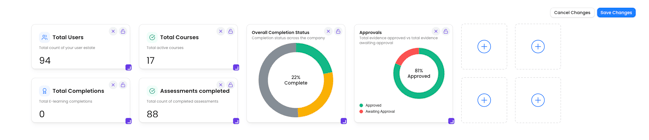 Adding a Card
In edit mode, empty grid cells are shown with a dashed border and a + icon. Click any empty cell to open the Add Card panel, which lists all available cards for your company.
You can filter the list by card type to find what you're looking for. Cards that are already on your dashboard, or that won't fit in the remaining space, will be shown as disabled with a tooltip explaining why.
Removing a Card
In edit mode, click the × button in the top-right corner of any card to remove it from your dashboard. Pinned cards do not show this button.
Moving Cards
In edit mode, drag any card to a new position on the grid. Cards will shift around to accommodate the move. Pinned cards stay fixed and cannot be dragged.
Resizing Cards
In edit mode, drag the resize handle (bottom-right corner of a card) to make it larger or smaller. Each card type has a minimum and maximum size — you won't be able to resize beyond those limits.
If you want to start over, click Cancel — this will revert all unsaved changes back to the last saved state.