
 How to Set User Roles and Permissions
Assigning the correct roles and permissions ensures each user has access to the features and information they need within the platform. Here’s how you can set user roles and understand what each role can do:
-
Company Admin
Full access to all platform features, settings, and user management. Can create, edit, and delete users, assign roles, manage courses, view reports, and configure company-wide settings -
Company Manager
Can manage users within their assigned scope, assign courses, view and manage training requirements, and access relevant reports. Cannot change company-wide settings -
Reporting Manager
Has access to reporting and analytics features. Can view user progress, compliance status, and run/export reports. Cannot edit users or manage courses -
Trainee
Standard user. Can access assigned courses, view their own training progress, and download certificates (if enabled). Has no administrative privileges
-
Navigate to User Management
Go to the User Management section of the platform -
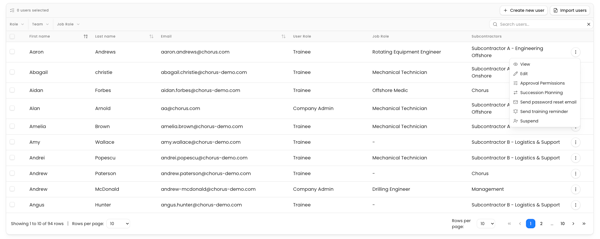
Select the User
Find and click on the user whose role you want to assign or change -
Edit User Details
Click the “Edit” button
-
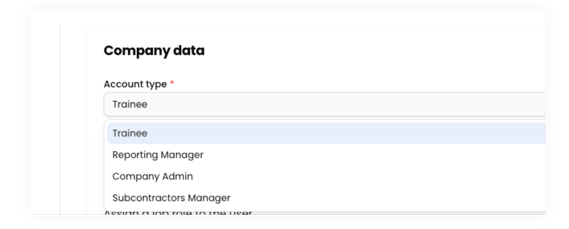
Assign Role
On the company data step - choose the appropriate role from the available options:- Company Admin
- Company Manager
- Reporting Manager
- Trainee
- Save Changes
Click “Update” to apply the new role to the user
Tip: Assign roles carefully to ensure users have the right level of access for their responsibilities.