
Who this is for: Company administrators and system administrators.
Before you start
You will need:
-
A company administrator or system administrator account.
-
To have your logo and any background images ready (PNG or JPEG, max 2 MB each), plus your brand colour.
Open company settings
-
Select Company Setup in the left-hand menu (under the Admin heading), the settings are grouped into sections.
-
Fill in what's relevant and click Update to save.
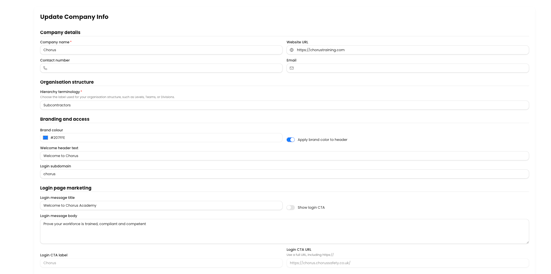
Company details
-
Company name (required).
-
Website URL.
-
Contact number.
-
Email.
Branding and access
-
Brand colour — your primary colour, applied across the platform.
-
Apply brand colour to header — switch on to colour the header with it.
-
Welcome header text.
-
Login subdomain — your part of the sign-in address (for example, chorus for chorus.chorustraining.com).
What happens next
Click Update. You'll see The company has been updated, and branding changes (such as your colour and logo) take effect across the platform.
Tips
The Show login CTA toggle must be on before you can fill in the CTA label and link — they stay locked until then
Turning a module off hides its features and menus for everyone in the company, so change module switches with care