
Who this is for: Assessors, verifiers, administrators, and training managers.
Before you start
You will need:
-
An account with assessor (or verifier) permissions.
-
The company approval module enabled.
Open the approvals queue
-
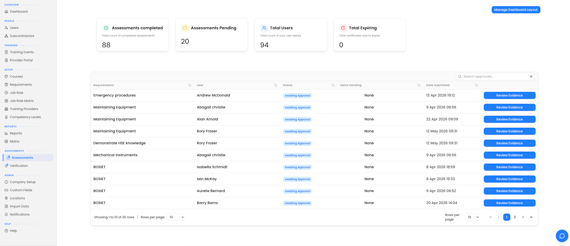
Select Assessments in the left-hand menu. Depending on your modules this may read Approvals.
The queue lists everything waiting for review, with columns for Requirements, User, Status, Items Pending, and Date Submitted. -
Find the item you want to assess and click Review Evidence.
Review the submission
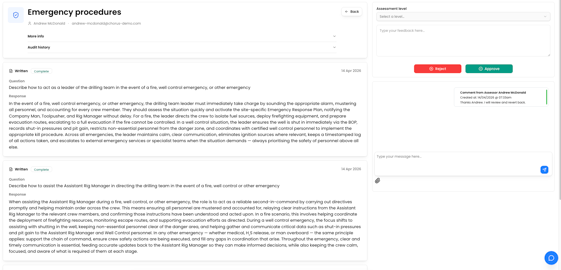
The review screen shows everything you need to make a decision:
-
At the top, the requirement name and the trainee's name and email.
-
More info — expand for the requirement's description.
-
Audit history — expand to see the current status and who assessed, approved, or verified it.
-
One or more evidence cards, each showing the submitted file (click the thumbnail to open it full-screen) and the trainee's notes under Trainee Notes.
Approve or reject
On the right-hand side:
-
If your company uses competency levels, choose one under Assessment level.
-
Add a comment in the feedback box (Type your feedback here...). This is optional but recommended, especially for a rejection.
-
Click Approve to sign the evidence off, or Reject to send it back.
You'll see a confirmation such as Approval saved and added to the chat, and your comment is added to the conversation thread with the trainee. After approving, you're returned to the queue automatically.
What happens next
-
Approved evidence marks that requirement as met for the trainee.
-
Rejected evidence stays with the trainee so they can resubmit, along with your feedback explaining why.
If your company uses a second-stage verifier check, approved items then appear in the Verification queue, where the action button reads Verify instead of Approve.
Tips
Always leave a clear comment when you reject something — the trainee sees it and it saves a back-and-forth.
Use the full-screen viewer to read certificates.