

Our platform allows you to create powerful, tailored reports using an easy, three-step wizard. Follow these steps to generate a report that fits your exact needs:
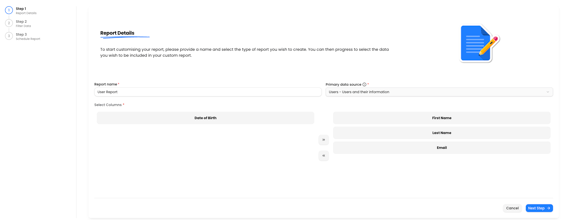
Step 1: Report Details
To start customising your report:
- Enter a report name: Choose a clear, descriptive name to help you and others easily identify this report in the future.
- Select the primary data source: Pick the type of data for the report you wish to create from the available options (e.g. Compliance, Course Completion, Training Requirements, etc.).
- Set up the reporting columns: Drag in the columns you want to see in your report and the order in which you want to view them.
Next: When ready, click “Next” to continue to the data selection step
Tip: The name and type help you quickly find and manage your reports later.
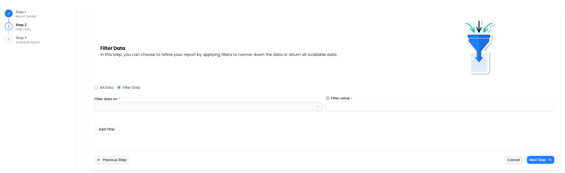
Refine the data included in your report:
- Apply filters: Use available filters to focus on the data that matters most to you, for example, filter by date range, user group, job role, course, compliance status, or any other relevant criteria.
- Return all data: If you want your report to include all available data, simply skip the filters.
- Preview: Some platforms allow you to preview your filtered data before continuing.
Next: Once your filters are set, click “Next” to proceed
Tip: Use filters to create targeted reports that answer specific questions or address compliance gaps.
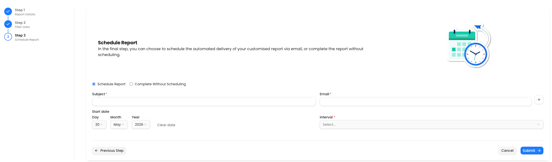
Choose how and when to receive your report:
- Schedule automated delivery: Set up a schedule to have your custom report emailed to you and other stakeholders automatically (daily, weekly, monthly, etc.).
- Or, finish without scheduling: If you don’t want to schedule delivery, you can generate and download the report immediately.
- Confirm: Review your settings and confirm to complete the report setup.
Tip:
Scheduled reports help you stay on top of compliance and training progress—hands-free!