
Step 1: Locate the User
- Navigate to either User Management or the Dashboard
- Use the search options to find the specific user whose training record you need to update
Step 2: View the User’s Training Record
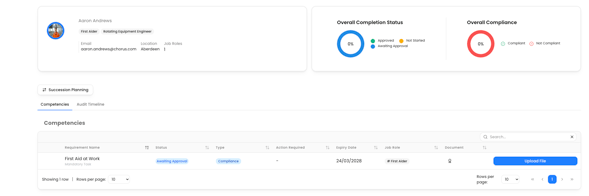
- Click the “View” button beside the user’s name.
- This will open the user’s full training record, displaying all assigned training requirements and their completion status.
Step 3: Select the Requirement
- Find the training requirement you wish to close out.
- Click “Upload File” beside that requirement.
Step 4: Upload and Save
- Upload the relevant training document or certificate.
- Complete any additional required fields (e.g., expiry date, training provider, or certificate number).
- Click “Submit” to confirm the update.