
Create a new user in your platform easily by following the four-step wizard. This guide will help you add users accurately and efficiently.
Start by entering the user's core information:
- First Name: Enter the user's first name.
- Last Name: Enter the user's last name.
- Email Address: Enter a valid email address. This will be used for login and notifications.
- Optional: Date of birth and phone number.
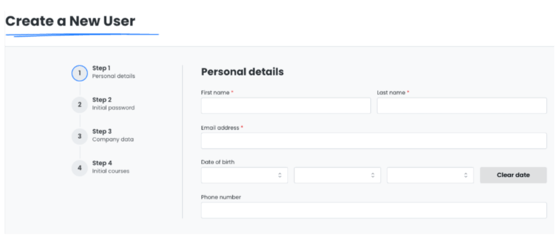
Tip: Double-check the email address for accuracy to avoid login issues.
Set up how the user will receive their initial password:
- Email the password (default): The system will automatically send an email to the user with a link or instructions to set their own password.
- Set a password manually: You can create a password for the user and share it securely.
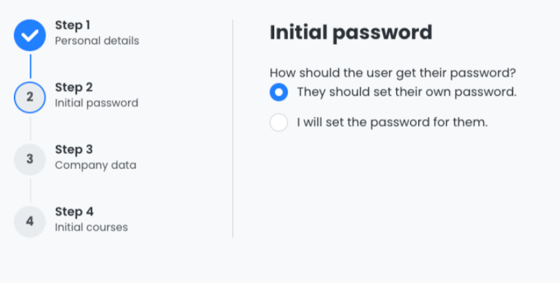
Tip: For most cases, letting the user receive their password via email is the safest, most secure and easiest option.
Assign the user to the appropriate company structures and roles:
- Job Role: Select the user's job role from the available options.
- Department: Choose the relevant department.
- Security Role: Assign the correct permission or access level.
- Custom Company Fields: Fill in any additional fields your company has configured (e.g., location, manager, start date).
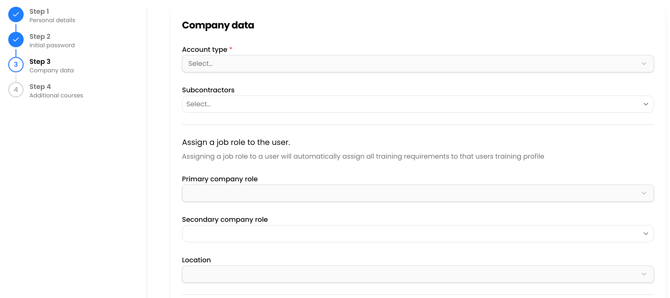
Tip: Assigning accurate roles and departments ensures the user gets the right access and training.
Optionally, you can assign e-learning courses to the user:
- Select courses: Choose any additional e-learning modules you want the user to start with.
-
Assign later: You can always assign more courses after the user is created.
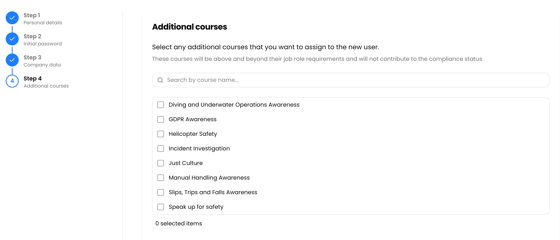
Tip: Assign required compliance or onboarding courses at this stage for a seamless start.